Protect your Microsoft 365 account
with a confirmation on your phone.
Today, a password is all it takes to open your Outlook mailbox and your Microsoft 365 files. If it is stolen, someone can read your emails and send messages in your name, for example fake invoices to your customers. Two-factor authentication adds a second check: when you sign in, your phone asks you to confirm that it is really you. It works like a bank card: the card alone is not enough, you also need the PIN.
Before you start
- Your phone (iPhone or Android) and your computer
- Your work email address and your Microsoft 365 password
- About 10 minutes
1 · Install the app on your phone
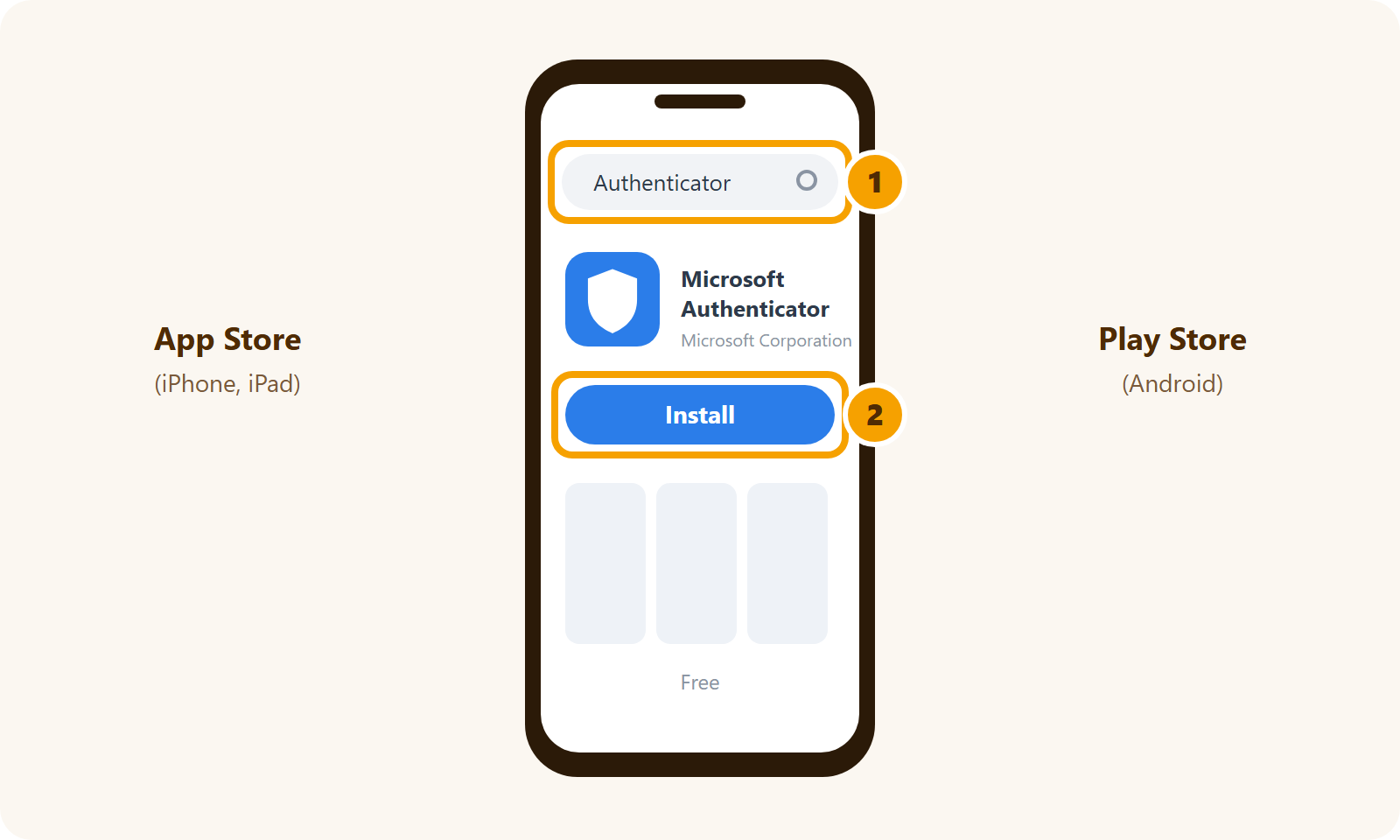
On your phone, open the App Store (iPhone) or the Play Store (Android).
Search for Microsoft Authenticator and tap Install.
The app is free.
Check that the publisher is Microsoft Corporation.
Open the app.
If it asks to send you notifications, accept: this is essential.
2 · Sign in from your computer
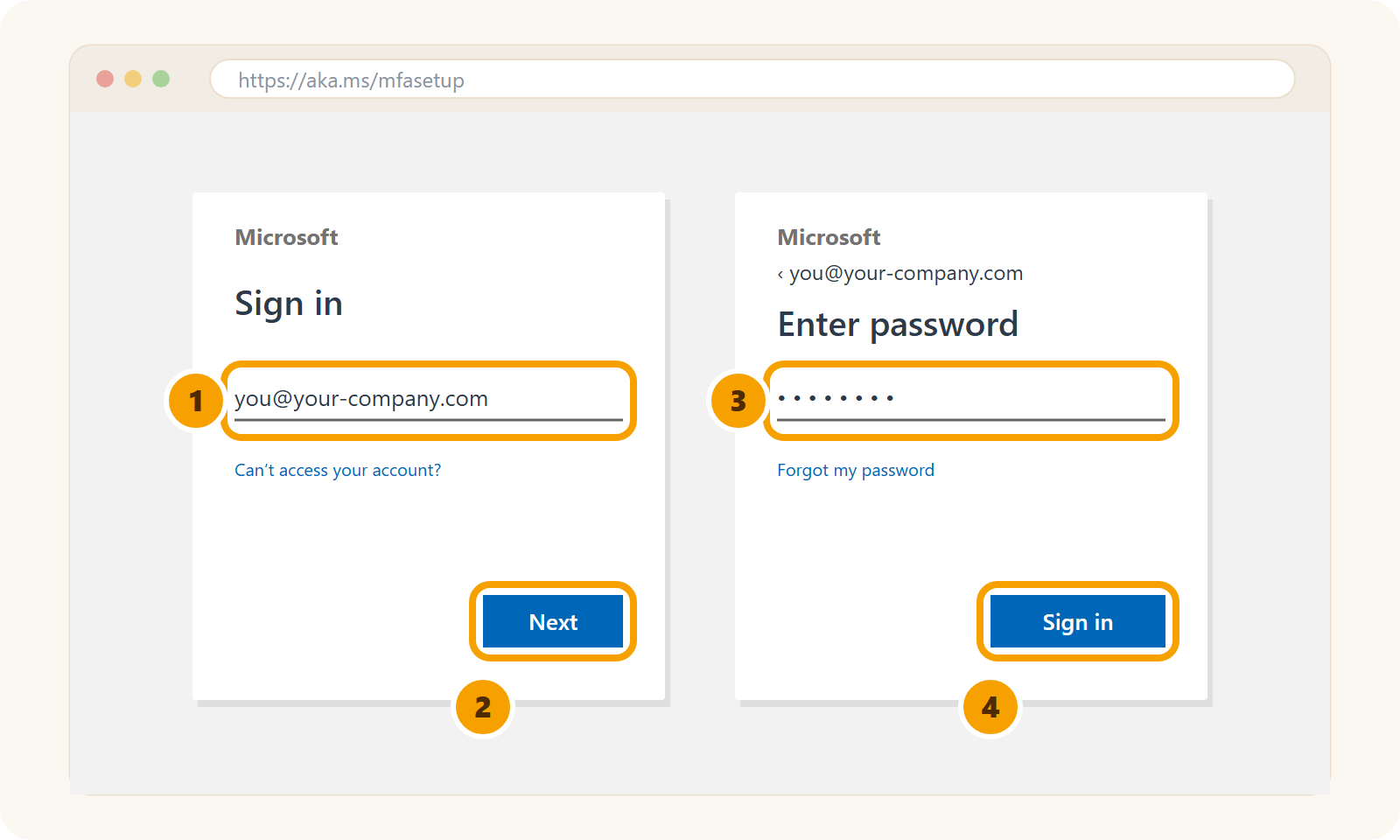
On your computer, open your web browser and type the address aka.ms/mfasetup.
Type your work email address and click Next.
Then type your password and click Sign in.
3 · Start the setup
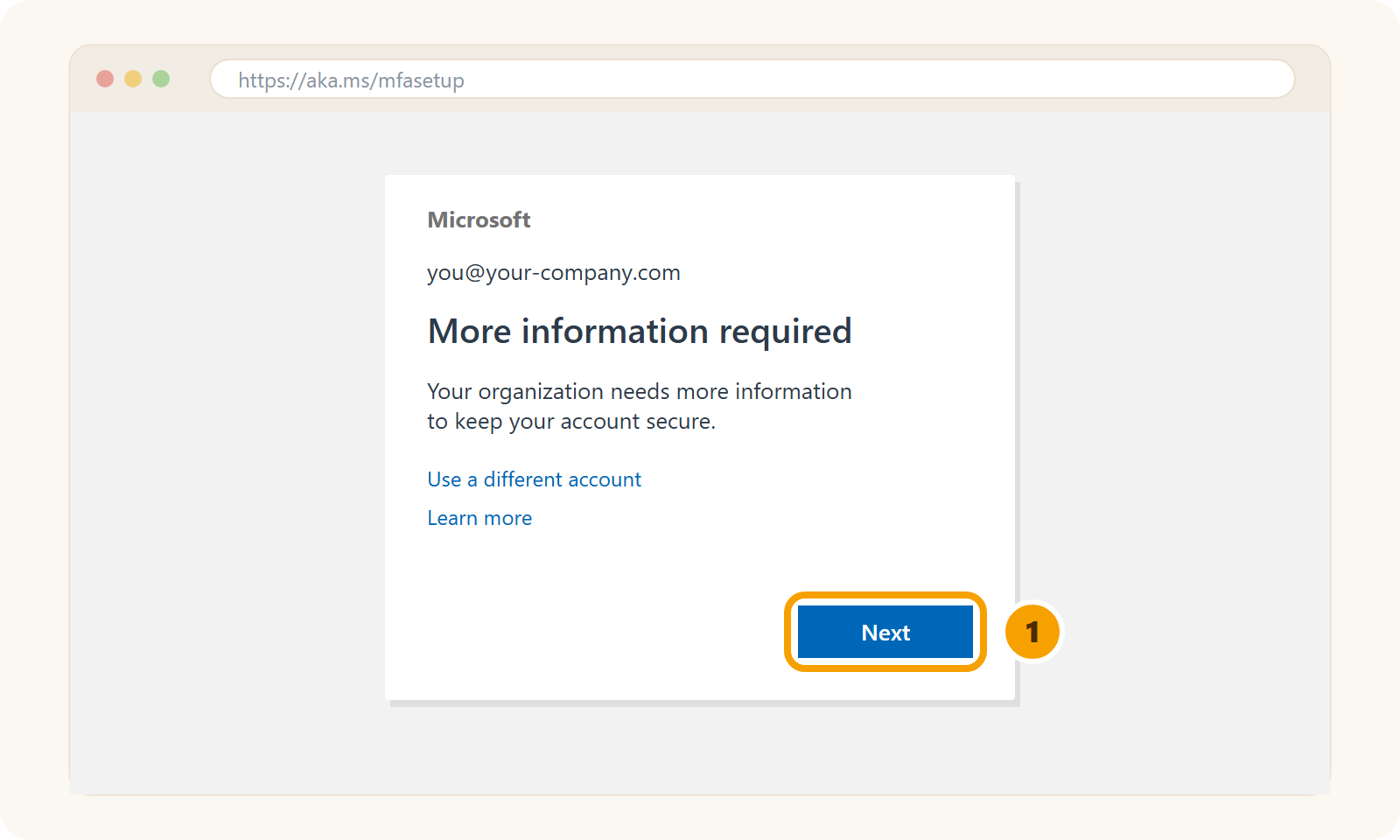
If Microsoft shows “More information required”, click Next and go straight to step 5.
This screen appears when we have made two-factor authentication mandatory for your company.
4 · No message? Add the method yourself
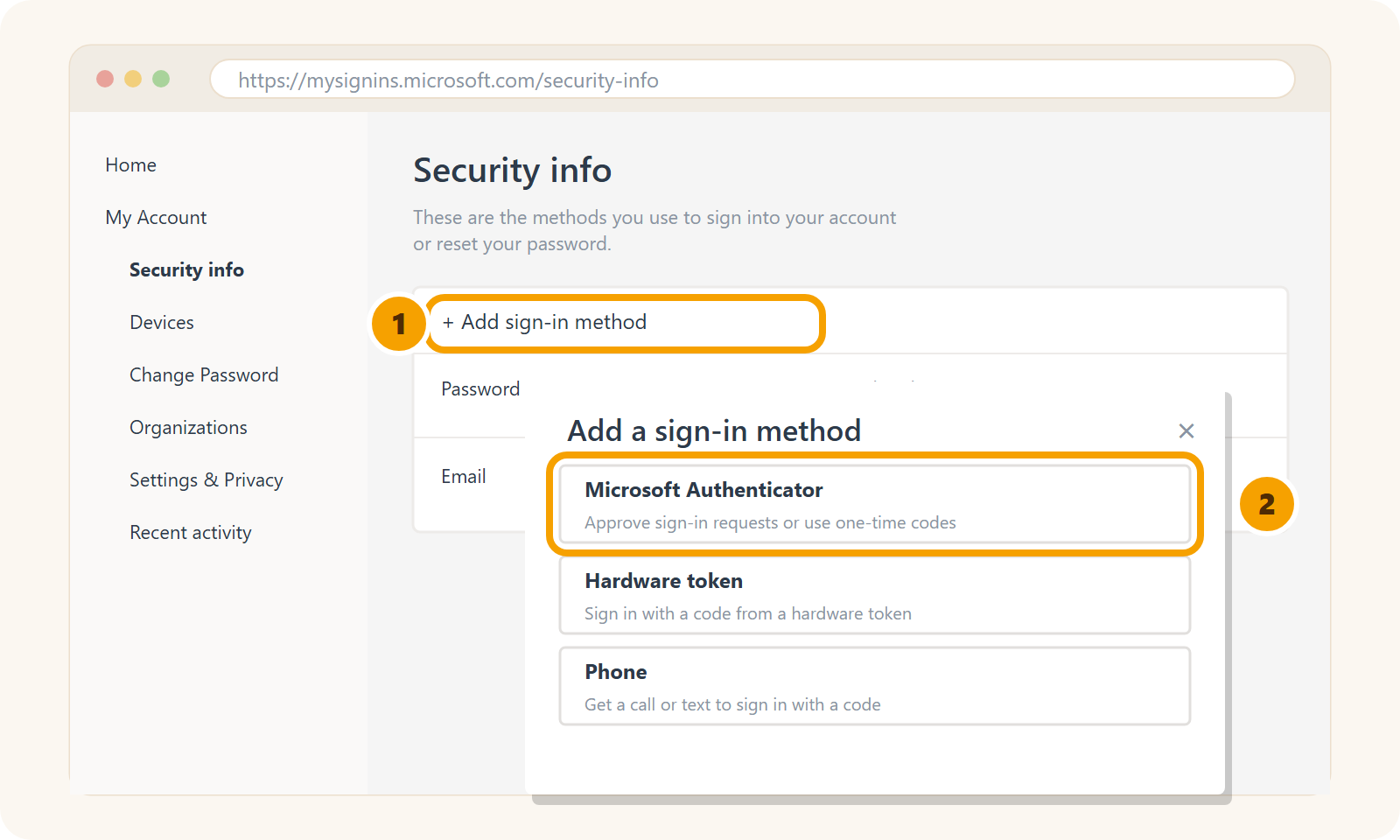
You land on the Security info page.
Click + Add sign-in method.
In the list that opens, click Microsoft Authenticator.
5 · Follow the wizard
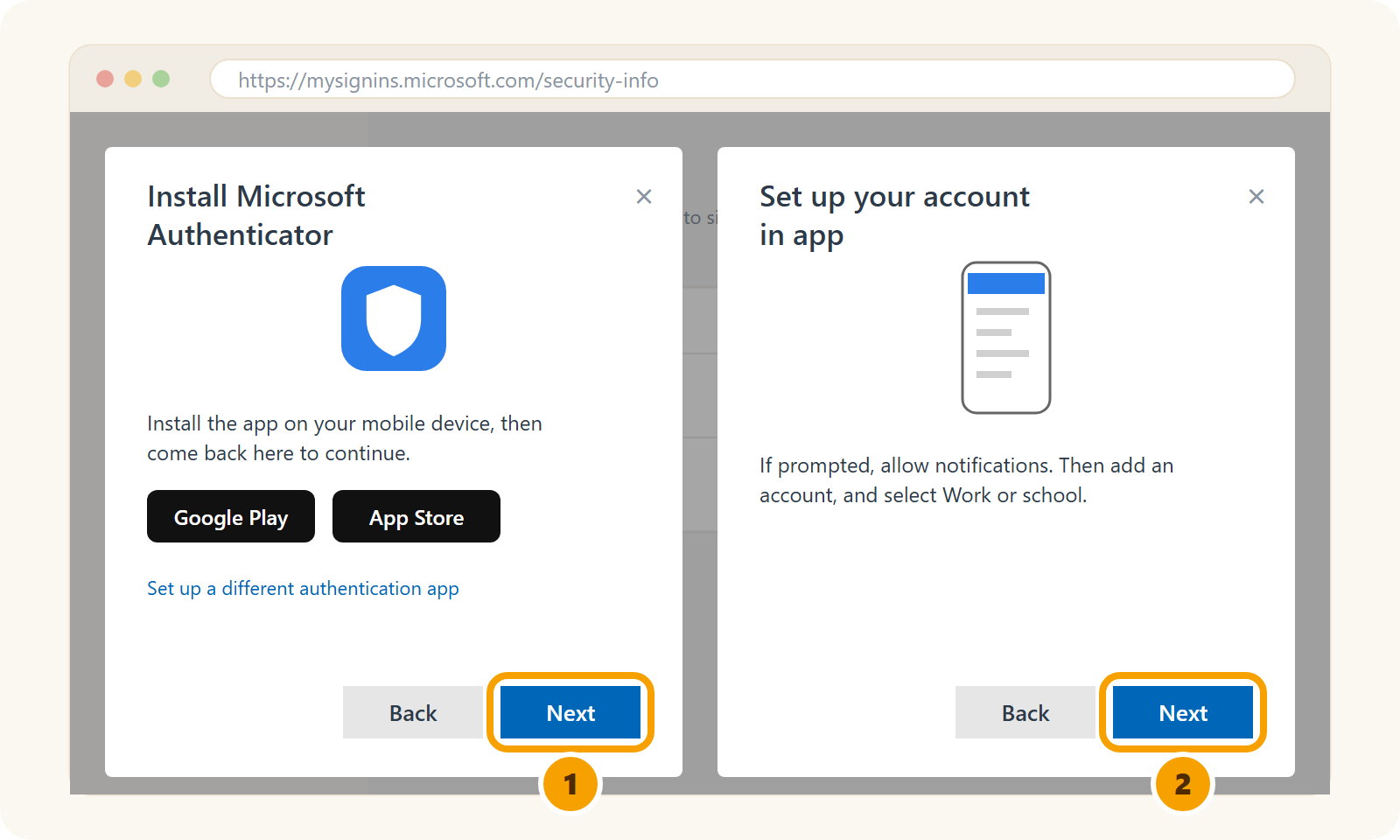
The “Install Microsoft Authenticator” screen appears.
The app is already on your phone: simply click Next.
On the “Set up your account in app” screen, click Next again.
A black and white square (a “QR code”) will appear: keep this page open.
6 · Add your account in the app
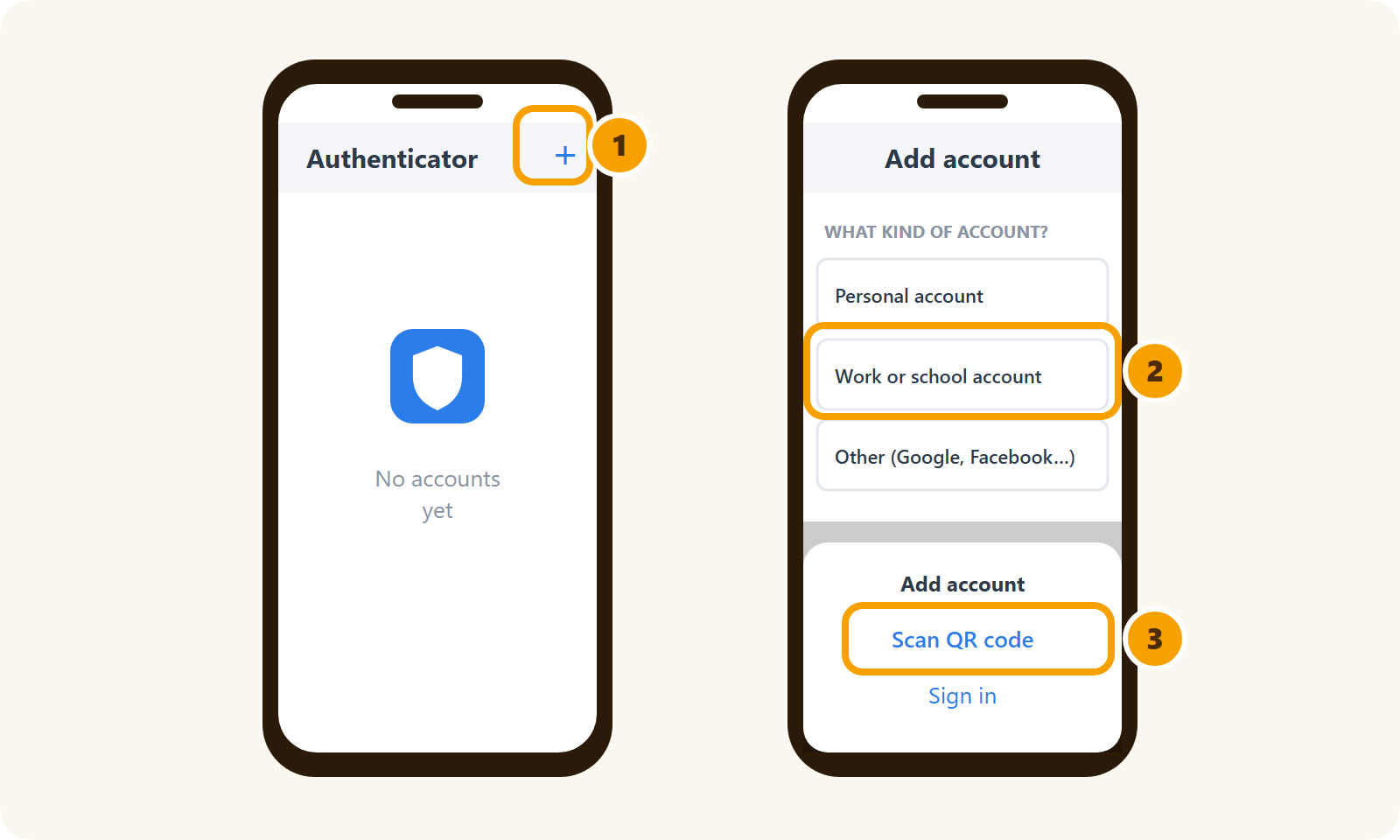
On your phone, in Authenticator, tap the + button in the top right corner.
Tap Work or school account, then Scan QR code.
If the phone asks for access to the camera, accept.
7 · Scan the QR code
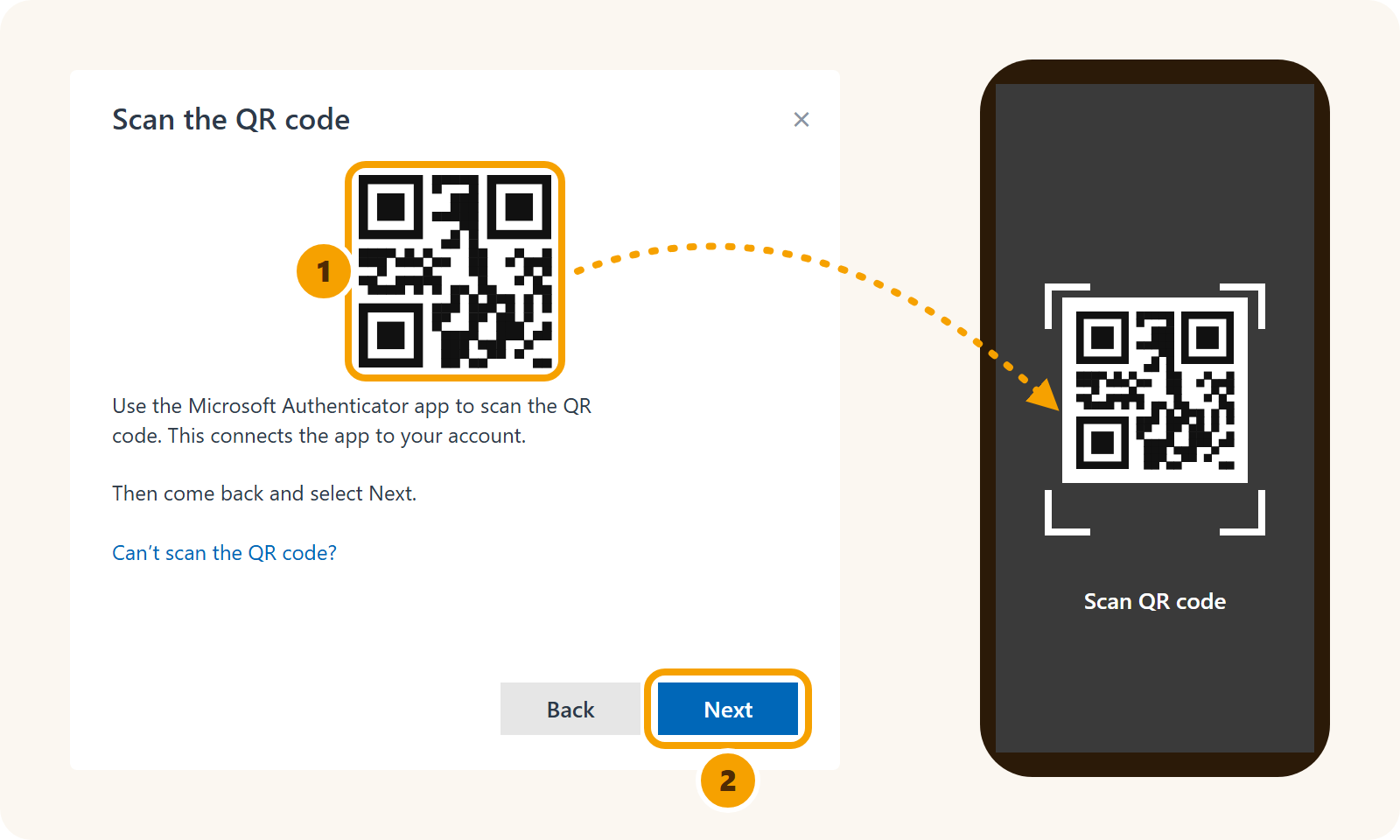
Point your phone at the QR code shown on the computer, as if taking a photo.
Your account appears in the app.
On the computer, click Next.
8 · Try it out
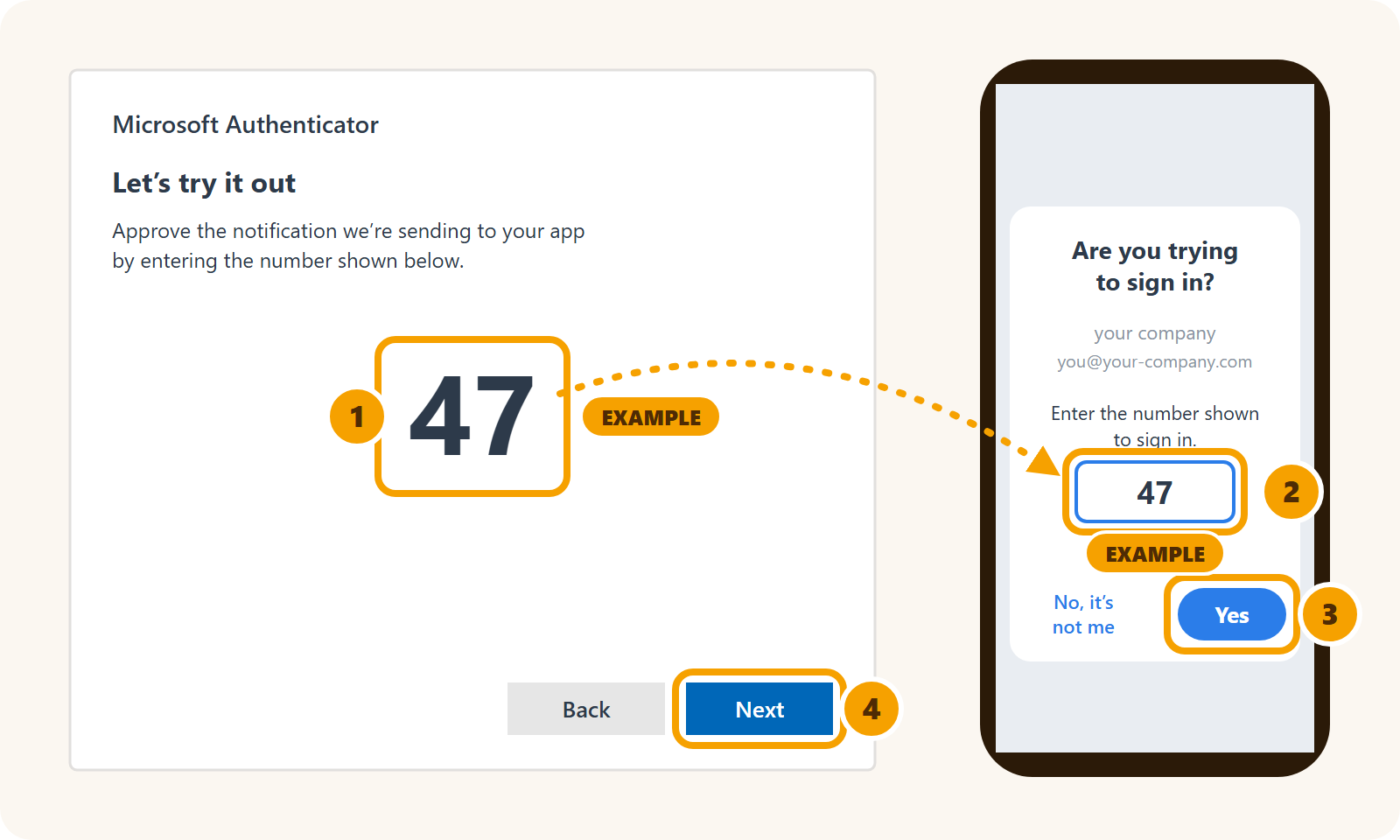
Microsoft checks that everything works: the computer shows a number and your phone receives a notification.
On the phone, type this number and tap Yes.
On the computer, click Next, then Done.
That’s it!
Careful: the number 47 in the pictures is only an example.
Always type the one shown on your computer screen: it changes every time you sign in.
Microsoft may also ask for your mobile phone number as a backup: enter it and follow the instructions.
9 · What now?
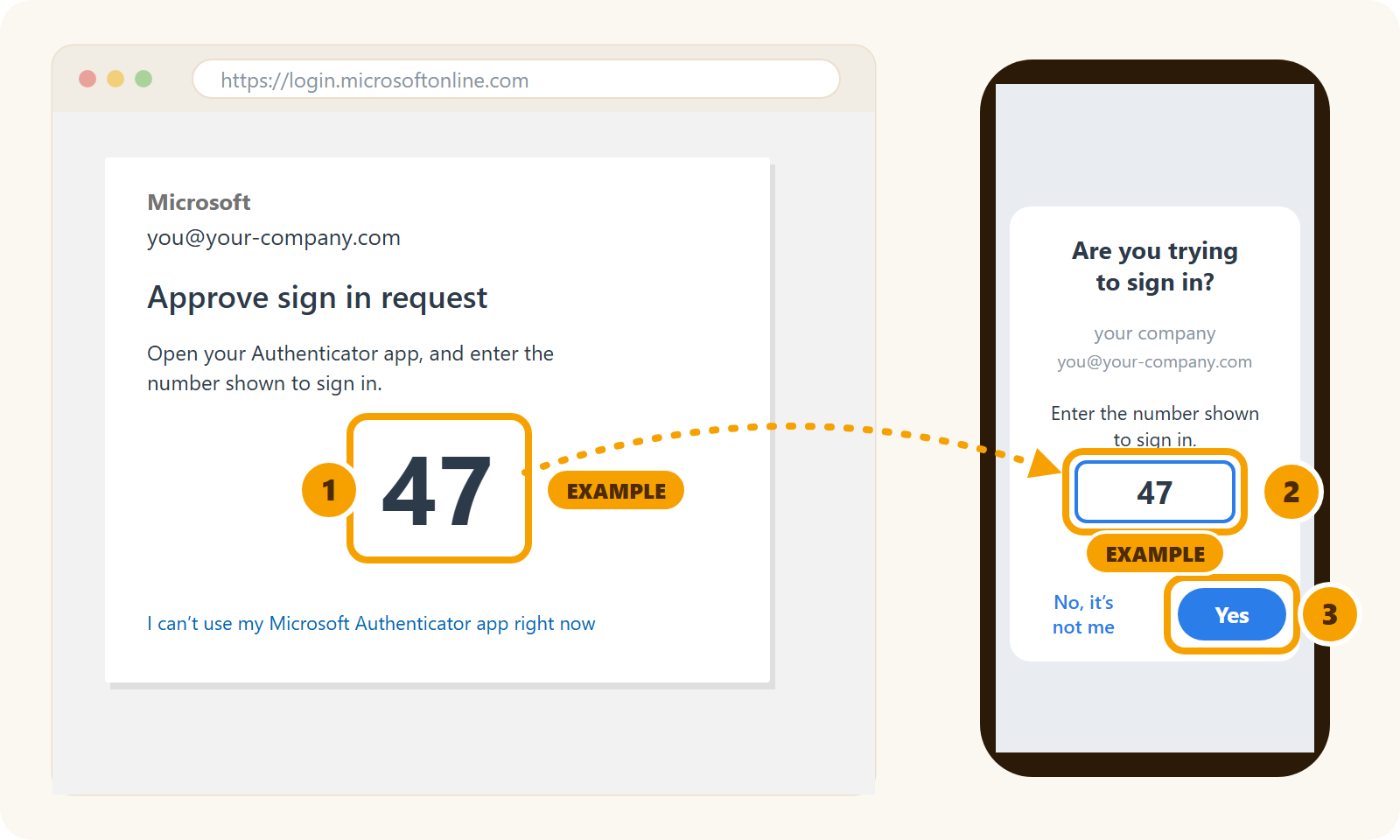
When you sign in on a new device, or from time to time, Microsoft shows a number. Open the notification on your phone, type the number and tap Yes. That’s all.
Careful: the number 47 in the pictures is only an example.
Always type the one shown on your computer screen: it changes every time you sign in.
Golden rule: if your phone asks you to confirm a sign-in while you are not signing in, tap No, it’s not me.
Someone probably knows your password.
Outlook, Teams and the other apps on your computer and phone may ask you for this confirmation once.
Troubleshooting
I lost or changed my phone
We reset your two-factor authentication, then you set it up again on the new phone in a few minutes.
If you plan to change phones, let us know beforehand.
I don’t receive the notification
Open the Authenticator app: the request shows there.
Also check that Authenticator notifications are allowed in your phone settings and that the phone is connected to the internet.
My colleagues too?
Yes: each person does this for their own account, with their own phone.
Any doubt, or a step that doesn’t match your screen?
Call us and we will guide you remotely.